Dbmovies
Web App
Web App lets your visitors install your site as an app on their phone or computer, with its own icon, name and colors. This page explains what it needs, each setting, and how visitors install it.
Overview
With Web App, your visitors can install your site like an app: it gets an icon on their home screen or desktop, opens in its own window without the browser bar, and shows your name and colors while it loads.
Dbmovies publishes the manifest of your web app at /wp-json/dbmovies/v1/manifest, and adds the tags that browsers need to every page of your site. You set everything in Dbmovies › Settings › PWA.
What it needs
For browsers to offer the installation, your site needs:
- HTTPS.
- An App Name. The site name is used by default.
- Icons of 192×192 and 512×512 pixels, in PNG. Without them, browsers do not offer to install your site.
The installed app opens your site as it is online: it does not work without a connection.
App details
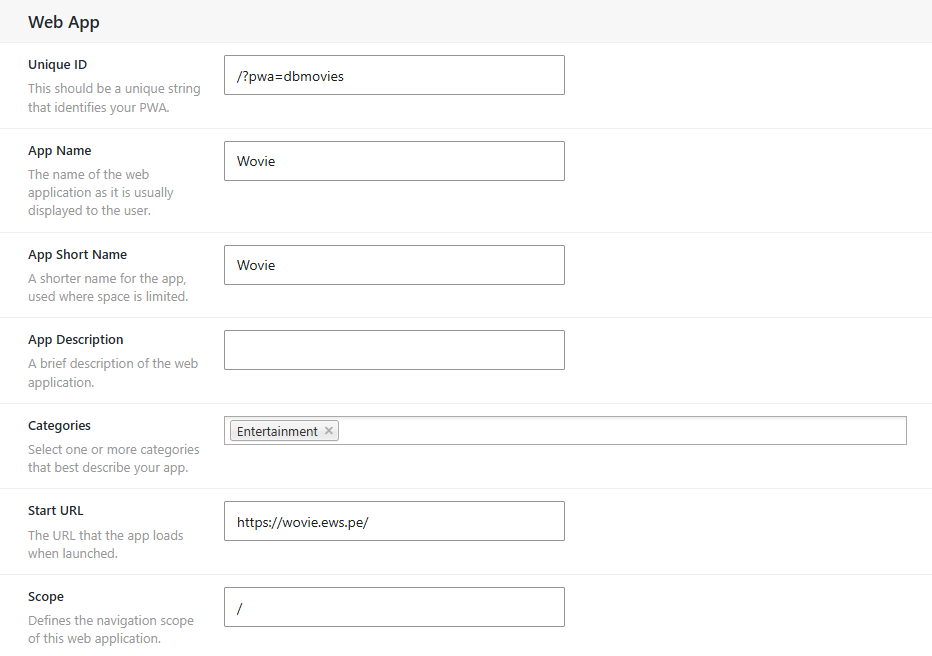
| Setting | What it does | Default |
|---|---|---|
| Unique ID | Identifies your app on the visitor's device. Do not change it once visitors installed it, or they will see it as a different app | /?pwa=dbmovies |
| App Name | The full name, shown when installing and on the splash screen | The site name |
| App Short Name | The name under the icon, where space is short. Keep it under 12 characters | The site name |
| App Description | A short description, shown by some app stores and browsers | The site tagline |
| Categories | What kind of app it is, for stores that list web apps | Entertainment |
| Start URL | The page the app opens with | /, your home page |
| Scope | The part of your site that opens inside the app. Links outside it open in the browser | /, your whole site |
Icons
Add icons in App Icons with Add Icon. For each one, upload the image and set:
- Sizes: its size in pixels. The image must have exactly that size.
- Type: its format, usually image/png.
- Purpose: Any for a normal icon, Maskable for one that the system can crop into a circle or a rounded square, Monochrome for a single-color icon.
We recommend these icons:
| Size | Purpose | Used for |
|---|---|---|
| 192×192 | Any | Android and the installation prompt |
| 512×512 | Any | The splash screen and stores |
| 512×512 | Maskable | Android home screens that crop icons |
For a maskable icon, keep the logo inside the central 80% of the image, with a solid background: the edges can be cropped. The icons are also used on iPhone and iPad, for the home screen.
Appearance
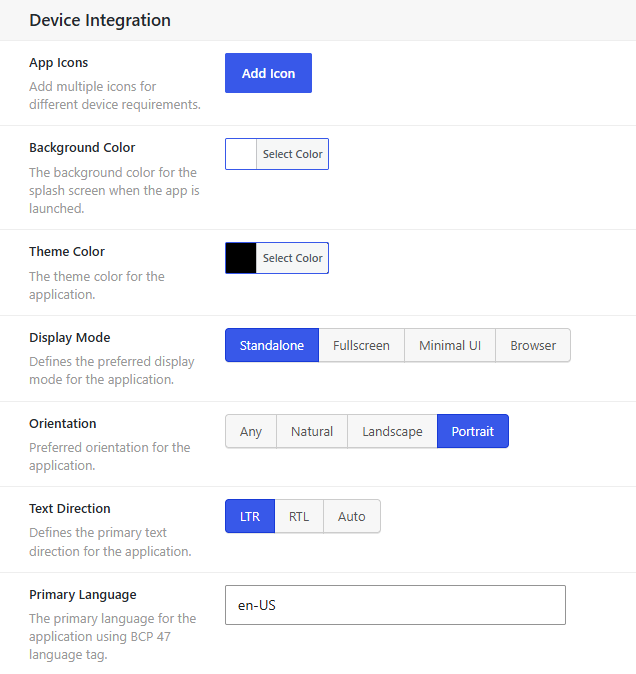
| Setting | What it does | Default |
|---|---|---|
| Background Color | The background of the splash screen while the app loads | White |
| Theme Color | The color of the title bar and the phone's status bar | Black |
| Display Mode | Standalone: its own window, without the browser bar. Fullscreen: the whole screen. Minimal UI: a small browser bar. Browser: a normal browser tab | Standalone |
| Orientation | Any, Natural, Landscape or Portrait | Portrait |
| Text Direction | LTR, RTL or Auto | LTR |
| Primary Language | The language of your app, as a language tag such as en-US or es-MX | en-US |
- Colors: use the colors of your theme, so the splash screen and the bars match your site. With a dark theme such as Wovie, a dark background and theme color look best.
- Orientation: on a movie site, we recommend Any, so the app turns when your visitors rotate their phone to watch.
How visitors install it
- Android (Chrome): the browser shows Install app, or it is in the menu: Install app or Add to Home screen.
- Computer (Chrome, Edge): an install icon appears at the right of the address bar.
- iPhone and iPad (Safari): tap Share, then Add to Home Screen.
Check your web app
- Open your manifest at
https://your-website.com/wp-json/dbmovies/v1/manifestand check the name, the colors and the icons. - In Chrome on a computer, open your site, press F12 and go to Application › Manifest. It shows the manifest as the browser reads it, with its icons and any problem that stops the installation.
If you use a page cache or a CDN, clear it after changing these settings.