Dbmovies
Movies
Movies is the content type for the films on your site. This page explains how a movie is stored, how to create and edit one, how its address works and what each box of the editor does.
Overview
Every film on your site is a movie: one record with its title, poster, synopsis, cast and crew, images, ratings and links.
You can create movies in two ways:
- By importing them from TMDb. This is the fastest way: it fills in almost everything for you. Use the importer in the Dbmovies menu, or Quick import from the movies list. See Importers.
- By hand, with the add button at the top of the Movies list, completing the fields yourself.
You find Movies in your admin sidebar, with a video icon. From there you see all your movies, add new ones, and edit or delete them like regular posts.
The movies list
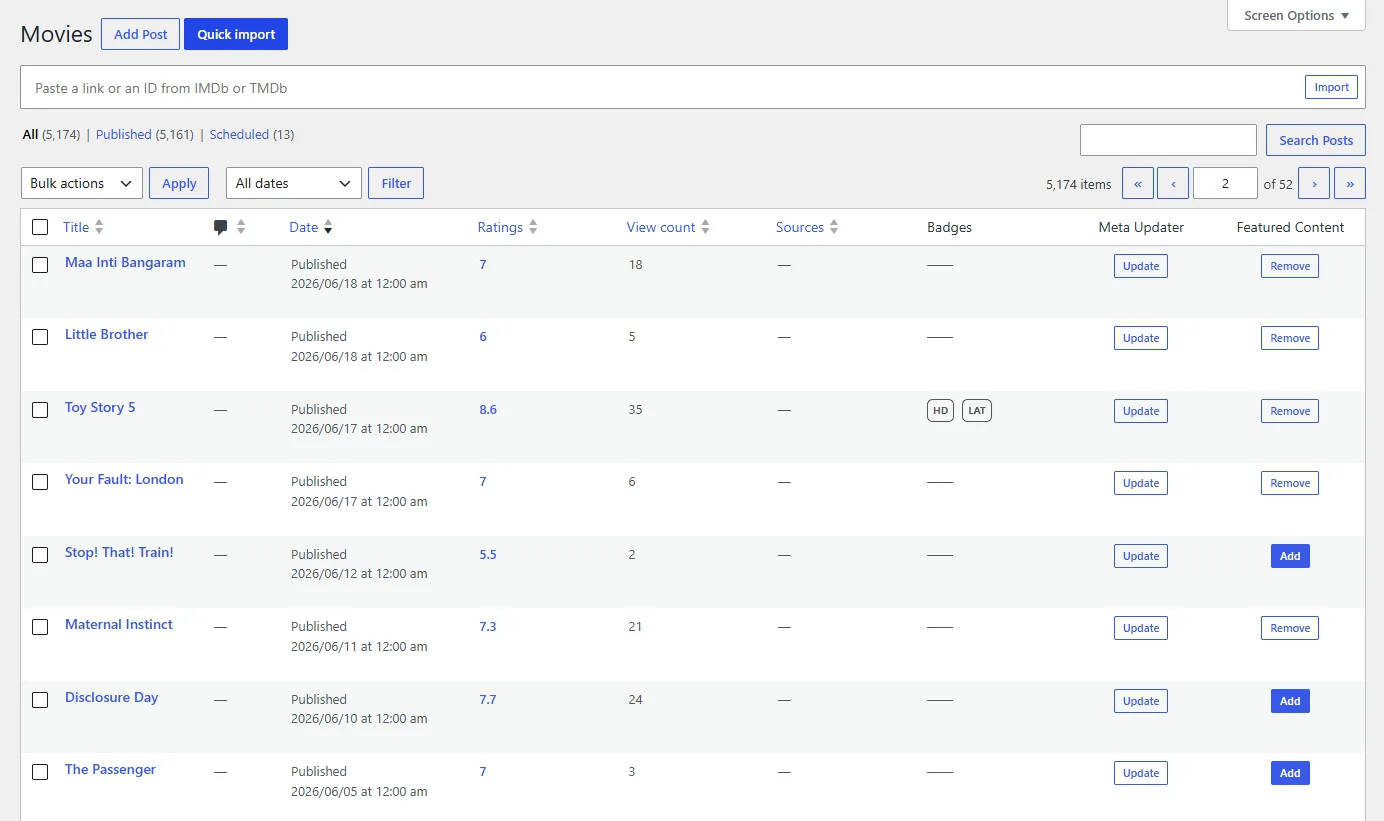
Besides the title and the date, the list has its own columns:
| Column | What it shows |
|---|---|
| Ratings | The rating of your visitors and its number of votes |
| View count | How many times the movie was viewed |
| Sources | How many links the movie has |
| Badges | The quality and language badges of the movie |
| Meta Updater | An Update button that refreshes the movie from TMDb and IMDb right away |
| Featured Content | Add or Remove the movie from your featured content |
You can sort the list by Ratings, View count and Sources.
Quick import, next to the add button at the top of the list, opens a field where you paste a TMDb or IMDb link or ID, for example https://www.themoviedb.org/movie/550 or tt0137523. Dbmovies imports the movie and opens it in the editor. If it already exists, it tells you and offers to edit it.
Quick Edit
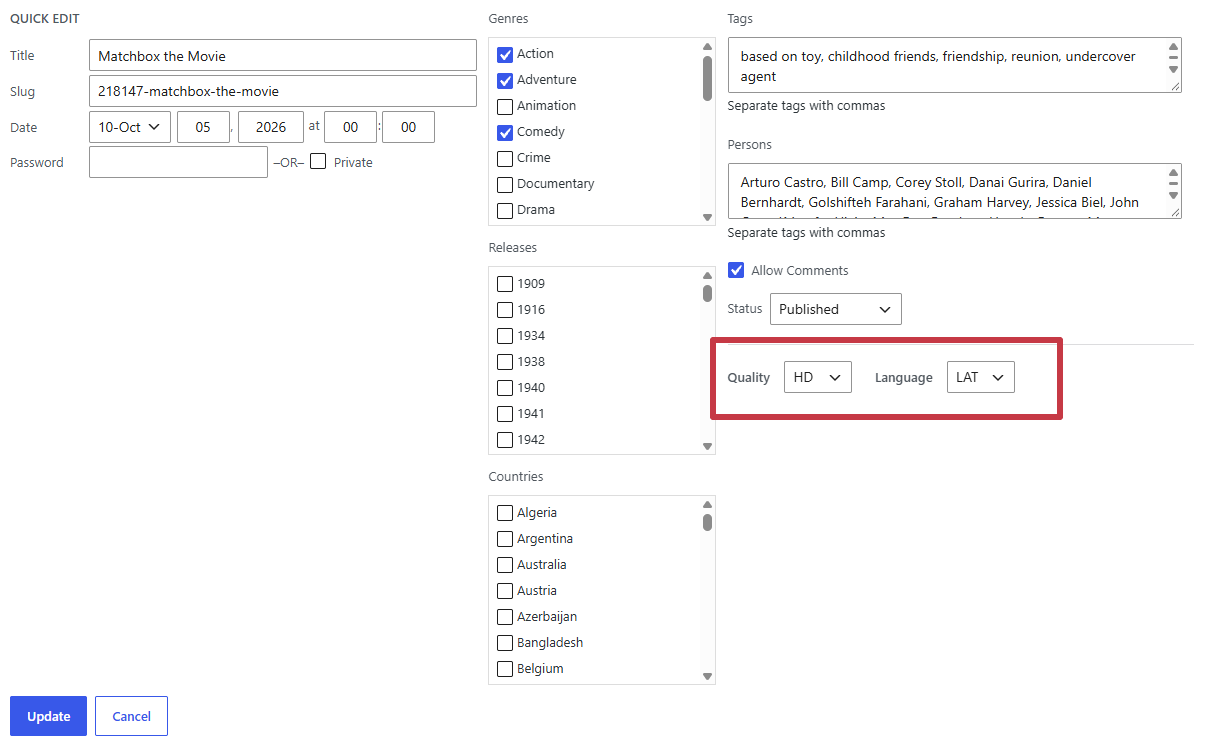
Hover a movie in the list and click Quick Edit to change it without opening the editor. Besides the WordPress fields, such as the title, the slug, the date and the status, you can change:
- its badges, in Quality and Language, which open with its current badges. The options come from your lists in Custom badges;
- its Genres, Releases and Countries, and its Tags.
The cast and crew are not in Quick Edit: edit them in the Persons field of the editor, so the credits and the person pages stay in sync.
To add genres, release years, countries or tags to several movies at once, select them and choose Edit in Bulk actions. Badges are changed one movie at a time.
Permalink
Every movie has its own address. You choose the word that comes before the movie name in Settings › Permalinks:
- Go to Settings › Permalinks.
- Scroll down to the Dbmovies: Post Type section.
- In Type: Movies, enter the word you want. The default is
movies. - Click Save Changes.
With the default value, a movie address looks like this:
https://your-website.com/movies/star-wars-the-rise-of-skywalkerIf you change it to films, the same movie moves to:
https://your-website.com/films/star-wars-the-rise-of-skywalkerIf you leave the field empty, Dbmovies uses the default. Dbmovies refreshes your site addresses on its own when you save.
Changing the word changes the address of every movie you already published, and links shared with the old address stop working. Choose it before you open your site.
Editing a movie
The movie editor has the standard WordPress fields and three Dbmovies boxes: Metadata, Sources and Advanced.
Standard WordPress fields
- Title: the name of the film on your site.
- Editor: the synopsis or description.
- Featured image: the poster.
- Comments: turn comments on or off for this movie.
- Author: the user who published it.
Classifications
Movies share these classifications with TV shows, so a genre or a person is the same across your whole catalog:
- Genres: action, drama, comedy and so on.
- Releases: the release year.
- Countries: the production countries.
- Persons: the cast and the directors.
- Tags: the standard WordPress tags, for an extra level of labeling.
Genres, Releases, Countries and Persons also have their own address setting in Settings › Permalinks, in the Dbmovies: Taxonomies section.
Metadata
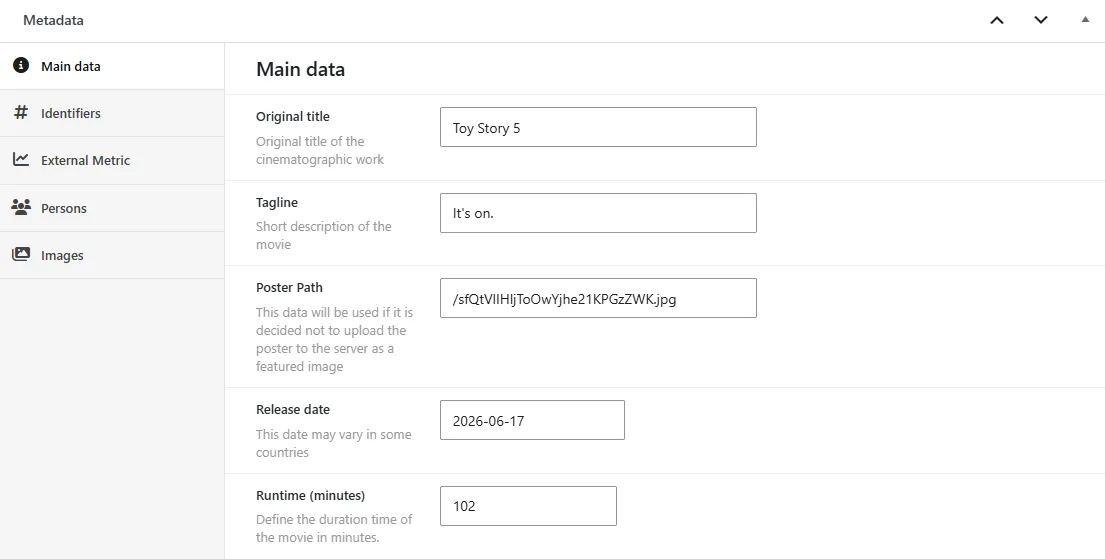
The Metadata box holds the details of the film, in tabs:
- Main data: original title, tagline, poster path, release date and runtime in minutes.
- Identifiers: the TMDb ID, the IMDb ID and the YouTube ID of the trailer. They connect the movie with TMDb and IMDb, so Dbmovies can keep it up to date.
- External Metric: the age rating (Rated, for example PG-13 or R), and the rating and votes of TMDb and IMDb.
- Persons: the directors and the cast, with the character each actor plays. When you import a movie, they come from TMDb. The directors are the people credited as Director, and a person that no title uses anymore is deleted.
- Images: the main logo and backdrop, plus more logos and backdrops.
Sources
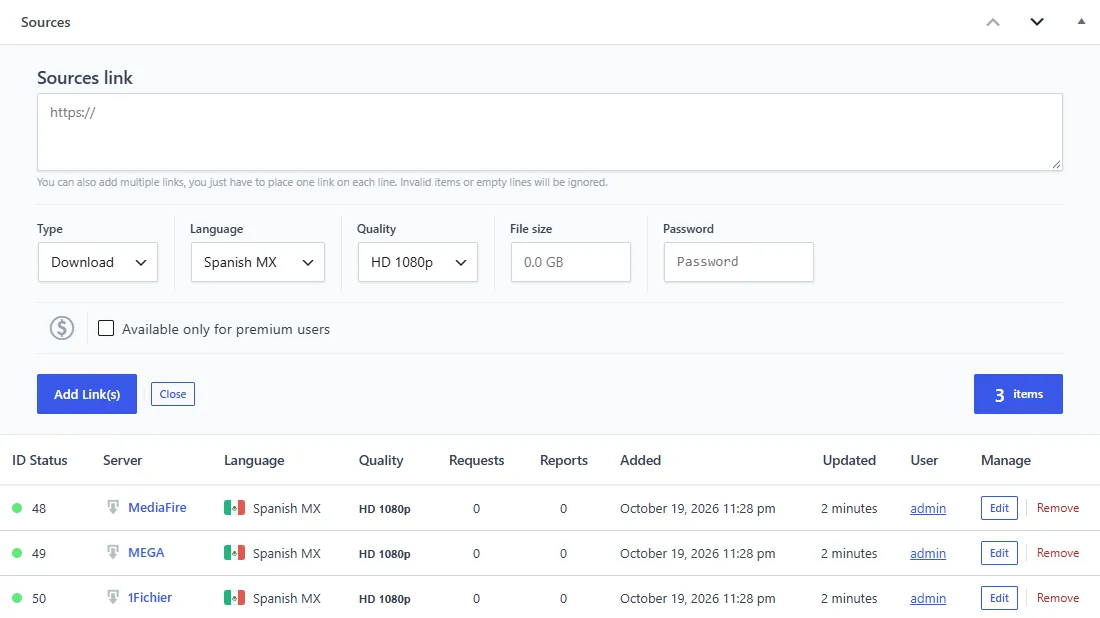
The Sources box holds the links of the movie: streaming embeds, downloads and direct MP4 files.
- Click Add Link(s).
- Paste one or more URLs, one per line. Invalid lines and empty lines are ignored.
- Choose the Type, Language and Quality. For downloads, you can also set the File size and a Password.
- Check Available only for premium users if only members can use these links.
- Click Add Link(s).
The table below lists every link of the movie with its server, language, quality, requests, reports, dates and the user who added it. From there you edit or delete each one.
Links from Auto-Embed are not listed in this box: they are built on the fly from the movie's IDs. To manage all the links of your site in one place, use Dbmovies › Links. See Link sources.
Advanced
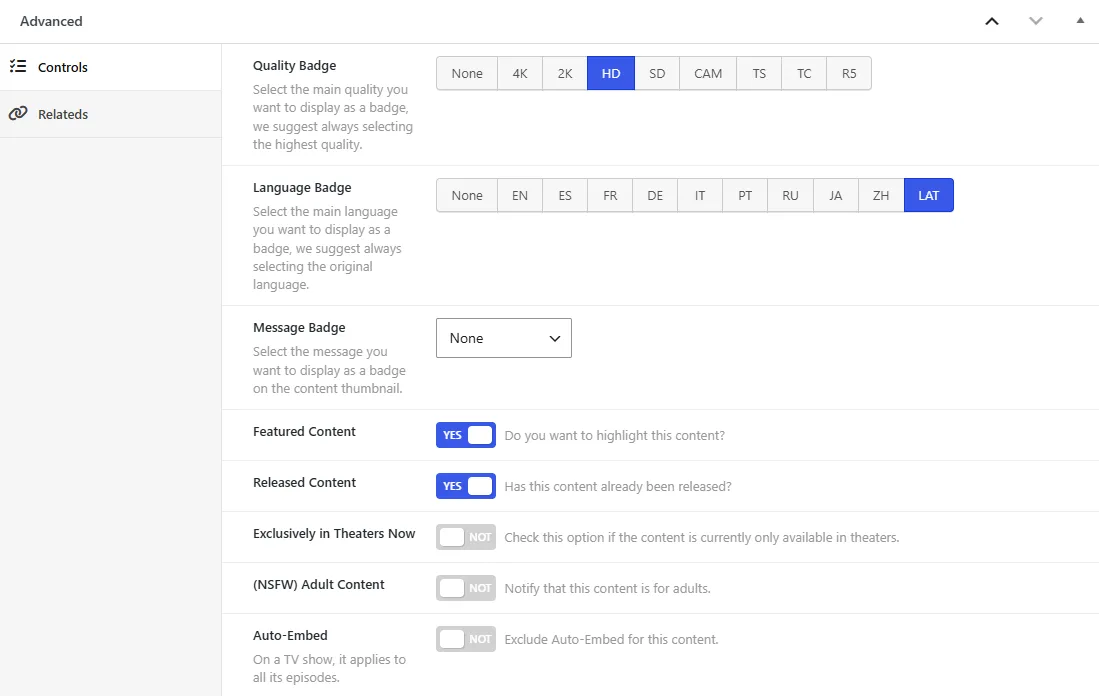
The Advanced box controls how the movie appears on your site. It has two tabs.
Controls
- Quality Badge and Language Badge: the quality and language shown as badges on the poster. We suggest the highest quality and the original language.
- Message Badge, Custom Badge Class and Badge message expiration: a short message on the poster, such as "New", with an optional CSS class and an end date. See Custom badges.
- Featured Content: highlights the movie in your featured content. See Featured content.
- Released Content: marks the movie as already released.
- Exclusively in Theaters Now: marks a movie that is only in theaters for now.
- (NSFW) Adult Content: warns visitors that the movie is for adults.
- Auto-Embed: turn it on to leave this movie out of Auto-Embed.
Relateds
- Collections: add the movie to one or more of your collections.
- Platforms: links to the streaming platforms where the movie is available, such as its page on a streaming service.
Keeping a movie up to date
Each movie stores its TMDb and IMDb IDs, so its ratings, votes, cast and images can be refreshed without editing it by hand:
- One movie: click Update in the Meta Updater column of the movies list.
- Your whole catalog: turn on the automatic Meta Updater, which refreshes your titles on a schedule in the background.