Dbmovies
Episodes
Episodes is the content type for the episodes of your TV shows. This page explains how an episode connects to its TV show, how episodes are created, what each part of the editor does, and what happens to episodes when their TV show is trashed or deleted.
Overview
An episode is one chapter of a series. Each episode is its own content on your site, with its own page, title and details, but it always belongs to a TV show and to a season.
Episodes are the third level of a series:
- The TV show is the parent record.
- The seasons are stored inside the TV show.
- The episodes are separate content, linked to the TV show.
You find the episodes in the TV Shows menu, under TV Episodes. They have no menu of their own, because every episode depends on a TV show.
How episodes are created
Adding every episode by hand would be slow, so Dbmovies creates them from TMDb, already linked to their TV show and numbered:
- Automatic episodes: every TV show you import queues its aired episodes, which are created in the background, season by season.
- The seasons manager: from the Seasons column of the TV shows list, import the episodes of one season or of all of them at once.
Both are explained in TV Shows › Importing the episodes.
For each episode, Dbmovies:
- links it to its TV show and sets its season and episode numbers;
- brings in its name, synopsis, air date, runtime and image;
- builds its title and address from the pattern in your Titles and content settings;
- never creates the same episode twice. The seasons manager updates an episode that already exists, and Automatic episodes skips it.
The image of each episode is uploaded to your media library only if Import Images is set to upload episode images. See Import images.
You can also create an episode by hand with the add button at the top of the TV Episodes list, and edit any episode afterwards.
How an episode connects to its TV show
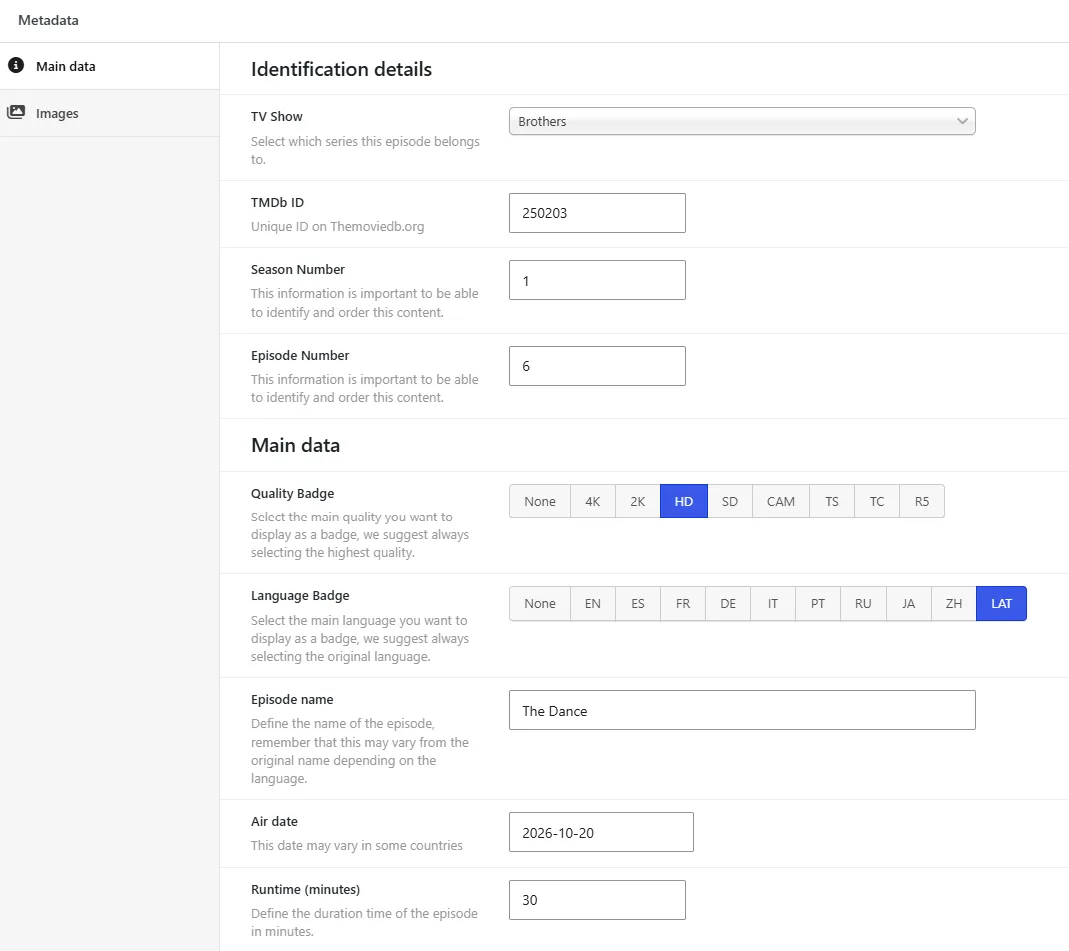
In the Main data tab of an episode, three fields place it inside its series:
- TV Show: the series it belongs to. Start typing its name and choose it from the list.
- Season Number: the season it belongs to.
- Episode Number: its position in that season.
With these three values, your site shows the episode in the right TV show and in the right order.
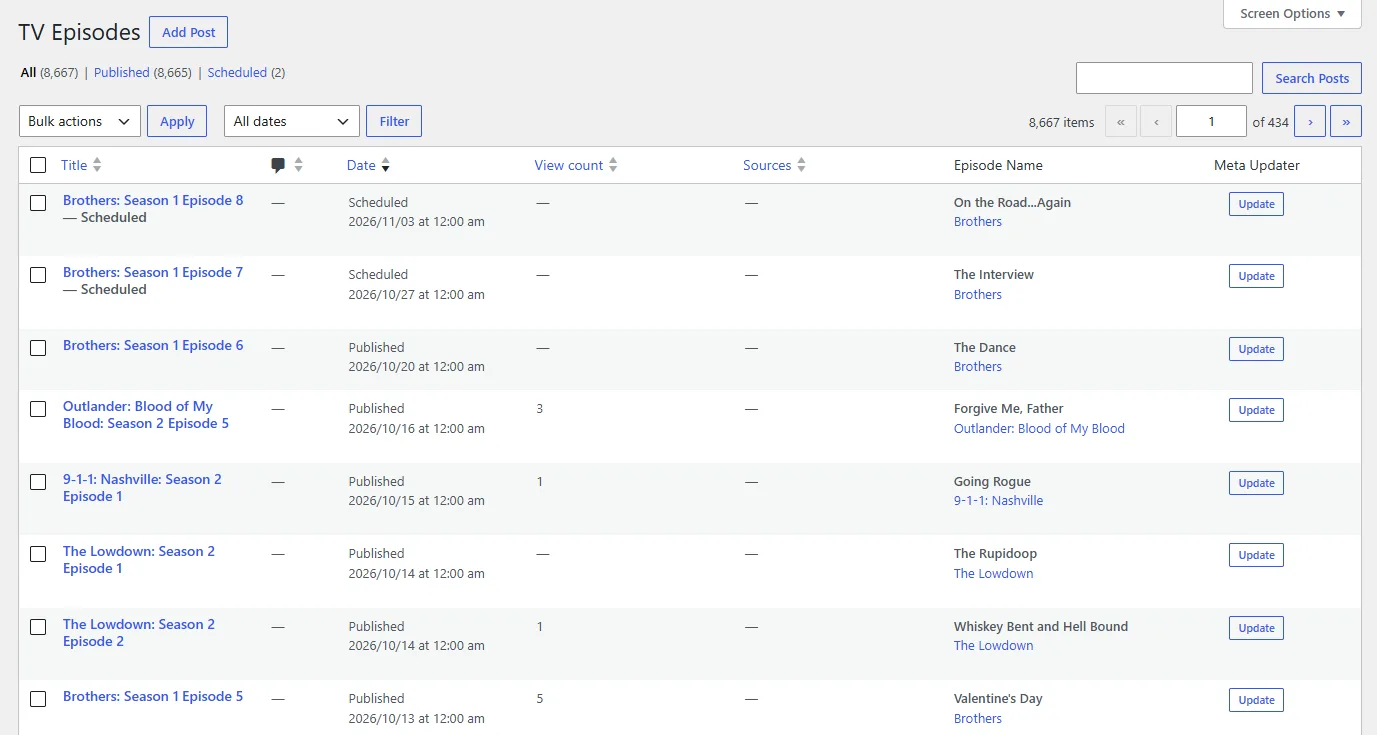
The episodes list
Besides the title and the date, the list has its own columns:
| Column | What it shows |
|---|---|
| View count | How many times the episode was viewed |
| Sources | How many links the episode has |
| Episode Name | The name of the episode, as it comes from TMDb |
| Meta Updater | An Update button that refreshes the episode from TMDb right away |
You can sort the list by View count and Sources.
Permalink
Every episode has its own address. You choose the word before the episode name in Settings › Permalinks, in the Dbmovies: Post Type section, field Type: Episodes. The default is episodes:
https://your-website.com/episodes/ahsoka-season-1-episode-1/Dbmovies also adds an address for each episode inside its TV show, which your theme can use:
https://your-website.com/tvshows/ahsoka/season1/episode1/If you leave the field empty, Dbmovies uses the default. Dbmovies refreshes your site addresses on its own when you save.
Changing the word changes the address of every episode you already published. Choose it before you open your site.
Editing an episode
The episode editor has the standard WordPress fields and two Dbmovies boxes: Metadata and Sources.
Standard WordPress fields
- Title: the title of the episode on your site.
- Editor: its synopsis.
- Featured image: the image of the episode.
- Comments: turn comments on or off for this episode.
- Author: the user who published it. Episodes created by Automatic episodes take the author of their TV show.
Metadata
- Main data: the link to its series (TV Show, Season Number and Episode Number), plus the TMDb ID, the Quality Badge, the Episode name, the Air date and the Runtime in minutes.
- Images: the main backdrop and more backdrops.
The Quality Badge can be None, 4K, 2K, HD, SD or CAM. We suggest the highest quality available for the episode.
Sources
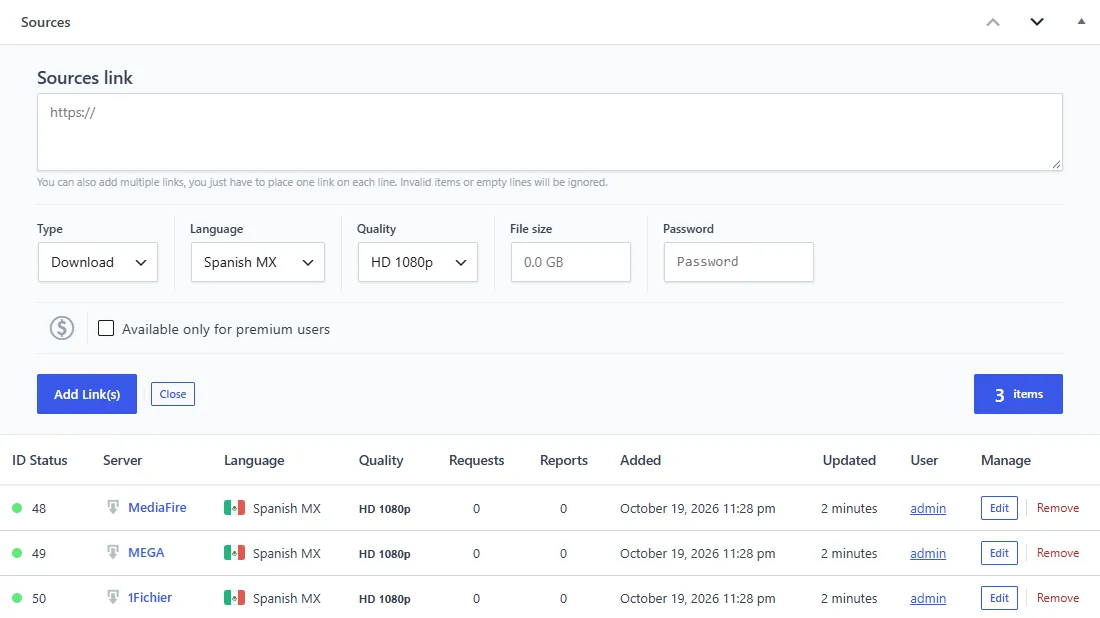
The Sources box holds the links of the episode: streaming embeds, downloads and direct MP4 files. It works as in movies:
- Click Add Link(s).
- Paste one or more URLs, one per line.
- Choose the Type, Language and Quality. For downloads, you can also set the File size and a Password.
- Check Available only for premium users if only members can use these links.
- Click Add Link(s).
You can also load the links of many episodes at once from an Excel or CSV file, matching each row by the TMDb or IMDb ID of the TV show and the season and episode numbers. See Link sources.
Auto-Embed links are added to every episode on the fly and are not listed in this box. Episodes have no switch of their own: they follow the Auto-Embed switch of their TV show.
When a TV show is trashed or deleted
Episodes follow their TV show:
- Moving a TV show to the trash moves its episodes too.
- Restoring it brings those episodes back, with the status they had. Episodes that were already in the trash before stay there.
- Deleting it permanently deletes its episodes, together with their links, votes and the images uploaded for them.
- Importing a TV show again after deleting it adopts the episodes that were left without a TV show, so it gets its episodes and links back instead of starting empty.
On a TV show with many episodes, Dbmovies finishes the work in the background, in short runs.
Keeping episodes up to date
- One episode: click Update in the Meta Updater column of the list.
- All your episodes: include Episodes in the post types of the automatic Meta Updater.