Dbmovies
Ad Manager
The Ad Manager serves your own ads in the positions your theme offers: banners, ad network code and native sponsor ads. This page explains slots, ad types, statuses and rotation, targeting by device and dates, stats, and how to charge advertisers.
Overview
The Ad Manager serves your ads in the positions of your site: your own banners, the code of an ad network such as AdSense, or native sponsor ads. It counts impressions and clicks, rotates several ads in the same position, and lets you charge advertisers for their campaigns.
You find it in Dbmovies › Ads.
Slots
A slot is a fixed position on your pages where an ad can appear, for example next to the comments. Your theme declares its slots, so the list only offers positions that your theme really shows.
Wovie offers four slots:
| Slot | Where it appears |
|---|---|
| Comments — Sidebar aside top | Next to the comments, at the top (300×250) |
| Comments — Sidebar aside bottom | Next to the comments, at the bottom (300×250) |
| Drift pop — bottom right | A small box that appears at the bottom right of the screen |
| Search — Native pair under title | Two native ads under the title of the search page |
If your theme declares no slots, the Add ad button stays disabled: there would be nowhere to show the ad.
Ad types
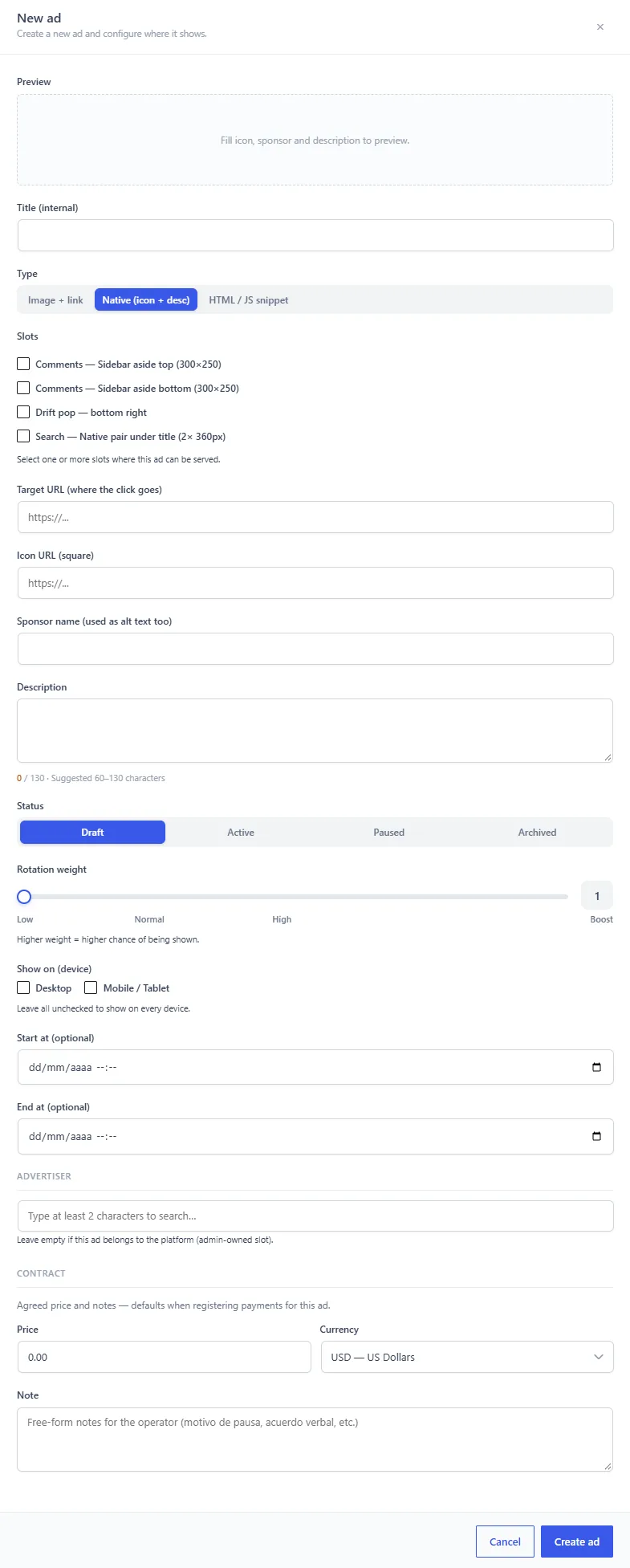
The type defines how the ad looks and what you fill in:
- Image + link: a banner image that opens a link. You add the image URL, the target URL and an alt text. Impressions and clicks are counted.
- HTML / JS snippet: the code of an ad network, such as AdSense or Ezoic, or an affiliate script. Only impressions are counted here: the network counts the clicks. Only administrators can edit this code.
- Native (icon + desc): a small sponsor ad with a square icon, a short description (60 to 130 characters work best) and the sponsor name. Impressions and clicks are counted.
- Video (pre/mid-roll): a video played by the theme player, which can be skipped after some seconds. The theme player has to support it; Wovie does not yet.
Your theme can hide the types it cannot show, so you may see fewer options.
Creating an ad
- Click Add ad.
- Give it a Title, for your own reference.
- Choose the Slots where it can appear, and its Type.
- Fill in the content of the type. The Preview shows how it will look.
- Choose the Status, and optionally the targeting.
- Click Create ad.
Statuses
- Draft: work in progress. Never shown.
- Active: live, and part of the rotation of its slots.
- Paused: stopped, but ready to resume.
- Archived: a finished campaign kept for its history. Never shown. Restore brings it back as Paused, so you can review it before turning it on again.
To end a campaign, archive it instead of deleting it: you keep its impressions and clicks.
Rotation
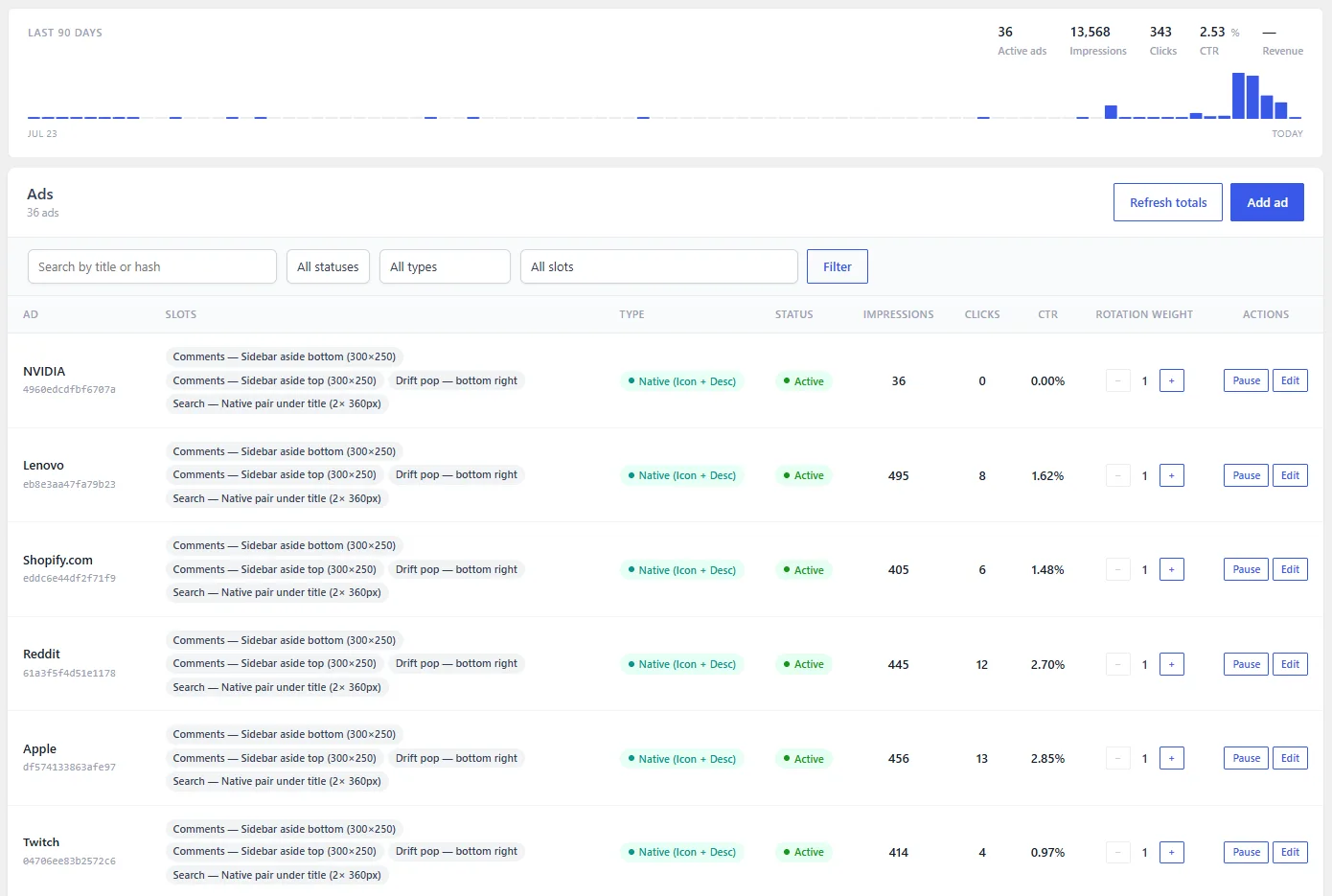
When several ads are active in the same slot, each visit shows one of them, chosen by its Rotation weight (1 to 10). An ad with weight 5 is about five times more likely to appear than one with weight 1.
Set it with the slider of the ad, marked Low (1), Normal (3), High (5) and Boost (10). You can also change the weight from the list, without opening the ad.
Targeting
- Show on (device): Desktop, Mobile and Tablet (tablets count as mobile). Leave all unchecked to show the ad on every device.
- Start at and End at: optional dates. Outside them, the ad is not shown, even if it is active. Useful for campaigns with a set period.
Stats
- Impressions: counted only when the ad is at least halfway on the screen, so preloading and bots do not inflate them. The same visitor counts once per ad per hour.
- Clicks: counted when a visitor follows an image, native or video ad. Clicks on HTML/JS ads are counted by their network.
- CTR: clicks divided by impressions.
The top of the screen shows a chart of daily impressions for the last 90 days, the totals of the period and the number of active ads. The list shows the impressions, clicks and CTR of each ad.
Totals refresh in the background every 10 minutes. To update them right away, for example after a test, click Refresh totals.
Advertisers and payments
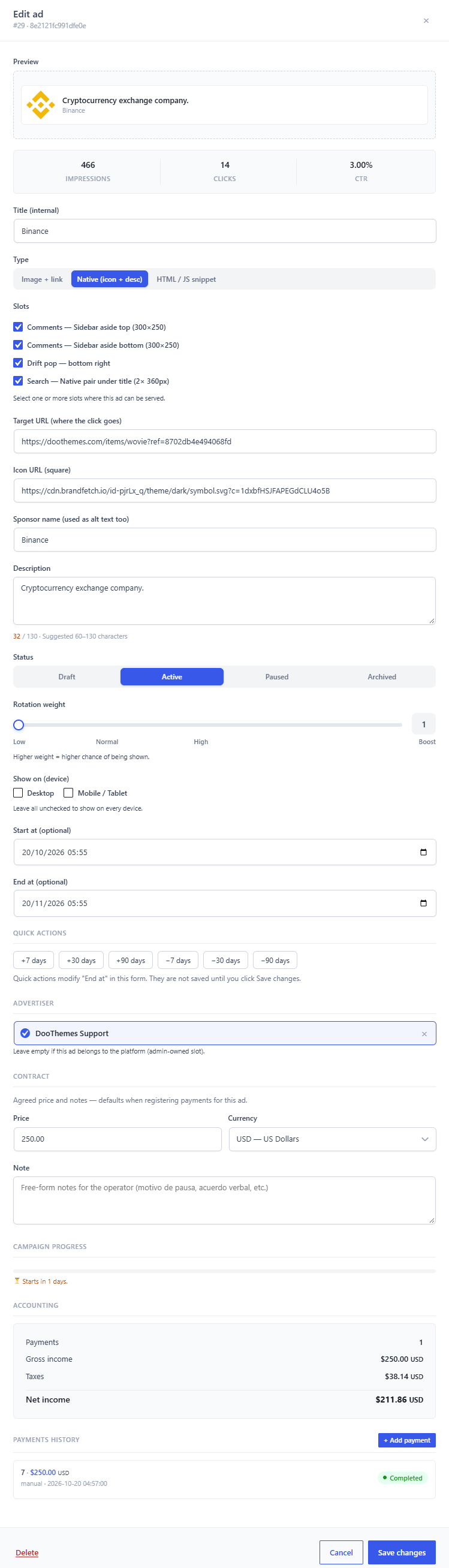
If you sell an ad to an advertiser, assign them in the Advertiser field of the ad. That turns on:
- Contract: the agreed price and notes, used as defaults when you register its payments.
- Campaign progress: the day of the campaign it is on, from its start and end dates.
- Accounting: gross and net income from its payments.
- Payments history: its payments, with Add payment to register a new one.
Leave Advertiser empty for your own ads. Payments for ads also appear in Dbmovies › Payments. See Payments.
An ad with payments cannot be deleted: delete its payments first. Deleting an ad keeps its stats.
Ad blockers
If your browser has an ad blocker, the Ads screen warns you: it can hide the previews and the native ads of the admin. Turn it off on your site to work with the Ad Manager.
Filters and search
Search by title or hash, and filter by status, type and slot.