Dbmovies
Import images
Import images decides where the posters, backdrops, logos and photos of your site come from and in which size: TMDb directly, your own CDN, or copies on your server. This page explains each option, how to connect your CDN and how to choose the sizes.
Overview
Your titles show many images: posters, backdrops, logos, episode images and photos of the cast. Dbmovies › Settings › Data Importer › Import Images decides where they come from and in which size.
Dbmovies does not need to store these images on your server. By default it shows them straight from TMDb, which keeps your server light and your media library small.
Where each image comes from
For each image, Dbmovies uses the first option that applies:
- The featured image of the title, if it has one: one an editor set, for example a localized poster, or a copy the importer uploaded. See Upload to your server.
- Your CDN server, if you set one.
- TMDb, directly, if you leave the default.
Serve images from a CDN
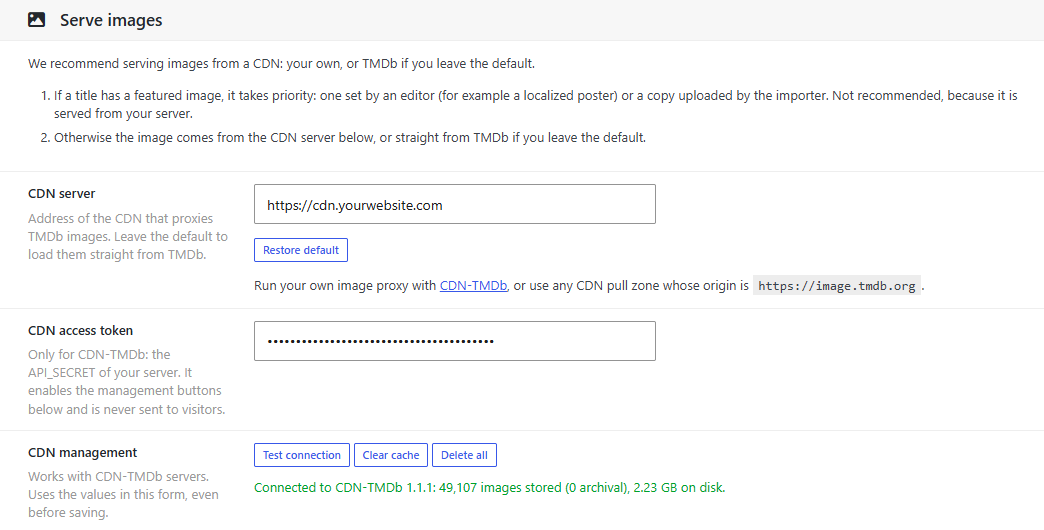
CDN server is the address images are loaded from. The default, https://image.tmdb.org, loads them straight from TMDb.
A CDN of your own keeps a copy of each image close to your visitors, so they load faster and do not depend on TMDb. You can use:
- CDN-TMDb, our open source image server, which you can run on your own server. See Deploy CDN Server.
- Any CDN pull zone whose origin is
https://image.tmdb.org, such as Bunny CDN or KeyCDN.
When you save a new address, Dbmovies loads a test image through it. If the CDN does not return the image, the address is not saved and the previous one stays, with a message that explains why. Restore default sets TMDb again.
Manage a CDN-TMDb server
With a CDN-TMDb server, add its CDN access token (the API_SECRET of your server) to use the management buttons. The token stays on your server: it is never sent to your visitors.
| Button | What it does |
|---|---|
| Test connection | Checks the server and shows its statistics. It does not change anything |
| Clear cache | Deletes the stored images, so the CDN downloads them again from TMDb when they are needed. It keeps the archival images: the ones TMDb no longer has |
| Delete all | Deletes every stored image, archival ones included. Archival images cannot be recovered, because TMDb no longer has them |
Clear cache and Delete all ask for confirmation. The buttons use the values of the form, so you can test a server before you save.
Image sizes
Each type of image is requested in one size. Larger sizes look sharper on big screens but take longer to load.
| Setting | Where it is shown in Wovie | Options | Default |
|---|---|---|---|
| Large poster | The poster of the title page | 342, 500, 780 px or Original | 780 px |
| Medium poster | Posters in lists and grids | 185, 300 or 342 px | 342 px |
| Backdrop | The background of title pages, collections and the featured hero | 780, 1280 px or Original | 1280 px |
| Logo | The logo of the title, over the backdrop | 185, 300, 500 px or Original | 300 px |
| Person photo | Photos of the cast and crew | 185, 342 or 500 px | 185 px |
Original is the full image as it was uploaded to TMDb, which can weigh several megabytes. Use it only if you need it.
Upload to your server (not recommended)
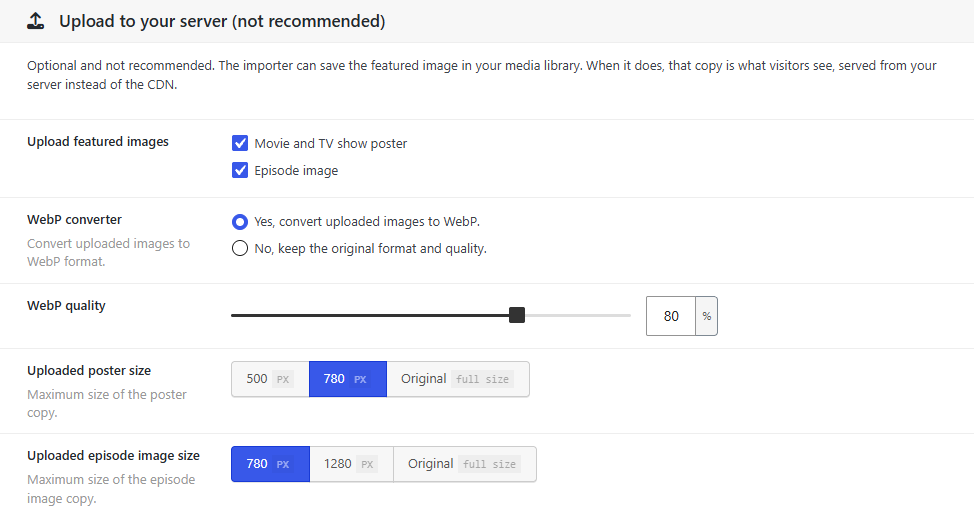
The importer can also download the main image of each title to your media library, as its featured image. We do not recommend it:
- the images are served from your server instead of a CDN, which adds load and bandwidth;
- your media library and your backups grow with every title;
- a featured image takes priority over the CDN, so your CDN no longer serves those images.
Use it only if you need the images on your server, for example to edit them. The settings are:
| Setting | What it does |
|---|---|
| Upload featured images | Movie and TV show poster, Episode image, or both. None by default |
| WebP converter | Converts the uploaded images to WebP, which weighs less. On by default |
| WebP quality | From 30 to 100%. 80% by default: a good balance between quality and weight |
| Uploaded poster size | 500, 780 px or Original. 780 px by default |
| Uploaded episode image size | 780, 1280 px or Original. 780 px by default |
A title only gets an uploaded image if it has no featured image yet, and updating a title never replaces its featured image. If you turn this on when you already have titles, each one gets its image the next time it is updated.
To stop serving an uploaded image, remove the featured image of the title: it goes back to your CDN or to TMDb.