Dbmovies
Installation
How to install Dbmovies on your WordPress site: from the admin panel, by FTP or with WP-CLI. It also covers updates, what deactivating and deleting the plugin do, and how to add the Wovie theme.
Before you start
- Check that your server meets the Requirements.
- Download the latest Dbmovies package from Downloads in your Doothemes account. It is a ZIP file named
dbmovies.zip. Do not unzip it if you install it from the WordPress admin. - Sign in to WordPress with an administrator account.
Method 1: From the WordPress admin (recommended)
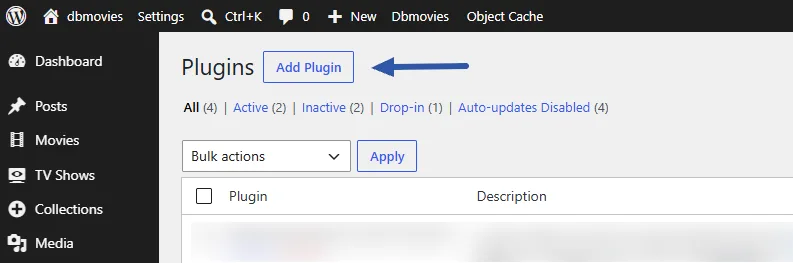
- In your WordPress admin, go to Plugins › Add New Plugin.
- Click Upload Plugin at the top of the page.
- Click Choose File, select
dbmovies.zipand click Install Now. - When the installation finishes, click Activate Plugin.
If the upload fails with a message such as "The uploaded file exceeds the upload_max_filesize directive", increase upload_max_filesize and post_max_size in your PHP settings, or use the FTP method below.
Method 2: By FTP or SFTP
- Unzip
dbmovies.zipon your computer. You get a folder nameddbmovies. - Connect to your server with an FTP or SFTP client.
- Upload the
dbmoviesfolder towp-content/plugins/. - In your WordPress admin, go to Plugins › Installed Plugins, find Dbmovies and click Activate.
Important: the folder must be nameddbmovies. With a different name, such asdbmovies-1.3.35, WordPress cannot match it with its updates.
Method 3: With WP-CLI
If you manage your site from the command line, install and activate the plugin in one step:
wp plugin install /path/to/dbmovies.zip --activateIf the files are already in wp-content/plugins/dbmovies, only activate it:
wp plugin activate dbmoviesWhat happens when you activate it
- The Dbmovies menu appears in your admin sidebar, with the importer, Links, Payments, Subscriptions, Requests, Ads, Tools, Updates and Settings.
- On its first load, Dbmovies creates its database tables. It takes a few seconds. If an action answers "The database is being updated. Try again in a moment.", wait a moment and try again.
- The importers stay locked until you activate your license and add your TMDb API key.
[SCREENSHOT_HERE: The WordPress admin sidebar with the Dbmovies menu open, right after activating the plugin]
Installing the Wovie theme
Wovie is the theme built for Dbmovies, and it needs the plugin to work. Install it after Dbmovies:
- Download the Wovie package from Downloads.
- Go to Appearance › Themes › Add New Theme › Upload Theme, select the file and click Install Now.
- Click Activate.
You manage the Wovie license from Dbmovies › Updates, next to the Dbmovies license. See the Wovie documentation for its settings.
Updating
With an active license, Dbmovies updates like any other plugin. When a new version is out, WordPress shows it in Dashboard › Updates and in the plugins list. Click View details to read what changed before you update.
To update by hand, download the latest package from Downloads and upload it again with Method 1. WordPress detects that Dbmovies is already installed and offers to replace the current version with the uploaded one.
Your content and settings are stored in the database, so updates keep them. If a new version changes the database, Dbmovies updates it on its own on the next page load.
Deactivating and deleting
- Deactivating the plugin stops its scheduled tasks. Your settings, content and license are kept, and everything comes back when you activate it again.
- Deleting the plugin from Plugins › Installed Plugins removes its files. By default it keeps its database tables and settings, so if you install it again, everything is where you left it.
To delete the Dbmovies data too, go to Dbmovies › Settings › Main settings, turn on Delete data when uninstalling and save before deleting the plugin. Dbmovies then also deletes its database tables, settings and scheduled tasks.
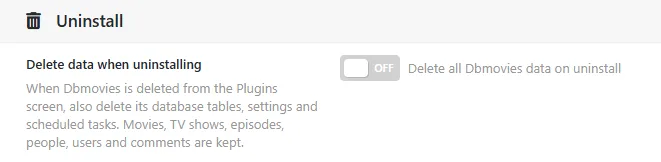
Note: your movies, TV shows, episodes, persons, users, comments and images in the media library are never deleted, even with this option turned on. They are regular WordPress content.
Next step
Activate your license to unlock the importers and receive updates: continue with License activation. Then follow Initial settings.