Dbmovies
Subscriptions
Subscriptions give your members premium access, with plans charged automatically through PayPal or registered by hand. This page explains plans, how to set up PayPal, what members see, the Subscriptions screen and editor, cancellations and expiration, and the subscription emails.
Overview
A subscription gives a member premium access for a period of time: the links marked as premium and anything your theme reserves for members.
Subscriptions work in two ways:
- Automatic, with PayPal. The member chooses a plan on your site and pays with PayPal, and PayPal charges them again every period. Dbmovies records each payment and keeps the subscription up to date on its own.
- Manual. You create the subscription for a user and register their payment, for example after a bank transfer.
Plans
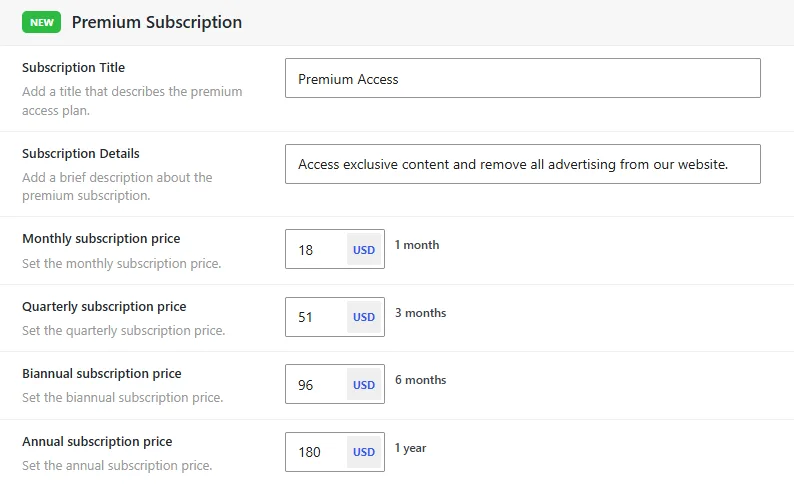
Dbmovies has four plans, set in Dbmovies › Settings › Subscriptions, section Finance:
| Plan | Duration |
|---|---|
| Monthly | 1 month |
| Quarterly | 3 months |
| Biannual | 6 months |
| Annual | 12 months |
- Turning plans on and off: give a price to each plan you want to offer. A plan with price 0 is turned off.
- Title and description: Subscription Title and Subscription Details present your membership on your site.
- Currency and taxes: they are in the same section. See Payments.
When a subscription is created, it keeps the name, price, currency and duration of its plan at that moment. Changing a price later does not change existing subscriptions: they keep the terms they were sold with.
Setting up PayPal
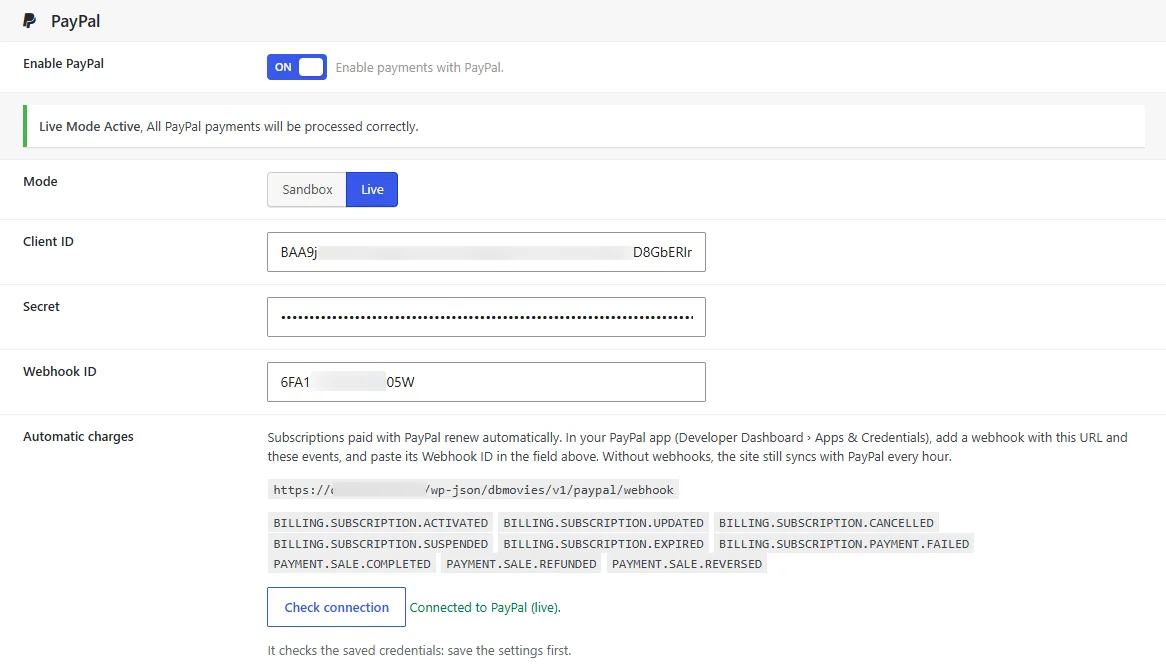
You need a PayPal business account and an app in the PayPal Developer Dashboard. Test with Sandbox first, then switch to Live.
- In PayPal, go to Developer Dashboard › Apps & Credentials and create an app, or open yours. Copy its Client ID and Secret.
- In WordPress, go to Dbmovies › Settings › Subscriptions › Payments and turn on Enable PayPal.
- Choose the Mode: Sandbox for tests or Live for real charges.
- Paste the Client ID and the Secret, and save.
- Under Automatic charges, copy the webhook address and the list of events.
- In your PayPal app, add a webhook with that address and check those events. PayPal gives you a Webhook ID.
- Paste the Webhook ID in WordPress and save.
- Click Check connection to confirm that the credentials work.
Things to check:
- HTTPS. Your site needs HTTPS: PayPal only sends its notifications (webhooks) to HTTPS addresses.
- Currency. If PayPal does not accept the currency of your site, the settings warn you.
- Without the Webhook ID, your site does not receive PayPal's notifications.
What your members see
The theme shows the plans, the checkout and the membership area of the account. In Wovie:
- Subscribing. The member chooses a plan and is sent to PayPal to approve the subscription.
- Access. Back on your site, the access is turned on when PayPal confirms the first charge. That usually takes seconds, and the account shows it as processing in the meantime. A charge that PayPal holds for review also gives access while it is reviewed.
- Renewals. PayPal charges every period on its own, and each charge extends the access. If a charge fails, PayPal tries again, and the member keeps access for a few extra days while it does.
- Cancelling the renewal. The member can stop the automatic renewal from their account. They keep access until the end of the period they paid for. To subscribe again later, they start a new subscription.
To change plans, the member cancels the renewal and subscribes to the new plan when the current one ends.
The Subscriptions screen
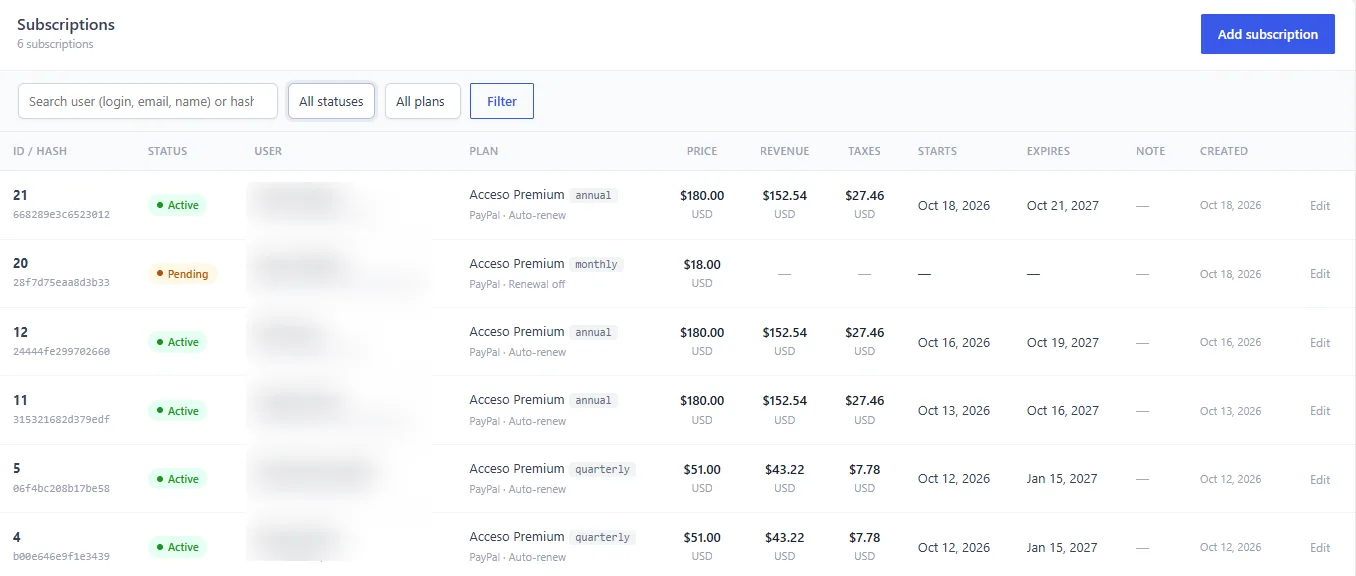
Dbmovies › Subscriptions lists every subscription:
| Column | What it shows |
|---|---|
| ID / Hash | The number and unique hash of the subscription |
| Status | Created, Pending, Active, Expired or Cancelled |
| User | The member |
| Plan | The plan. PayPal subscriptions also show PayPal · Auto-renew or PayPal · Renewal off below it |
| Price | The price it was sold at |
| Revenue and Taxes | What its completed payments add up to |
| Starts and Expires | Its access dates |
| Note | Your private note |
| Created | When it was created |
Search by login, email, name or hash, and filter by status and plan. The Subscriptions badge in the admin toolbar counts the pending ones.
Statuses
- Created: a new subscription that was not saved yet. The editor asks you to change it before saving.
- Pending: waiting for payment or activation.
- Active: paid and within its dates. The member has access.
- Expired: its end date passed.
- Cancelled: revoked before its end.
Dbmovies checks twice a day for subscriptions whose end date passed and marks them as expired.
Editing a subscription
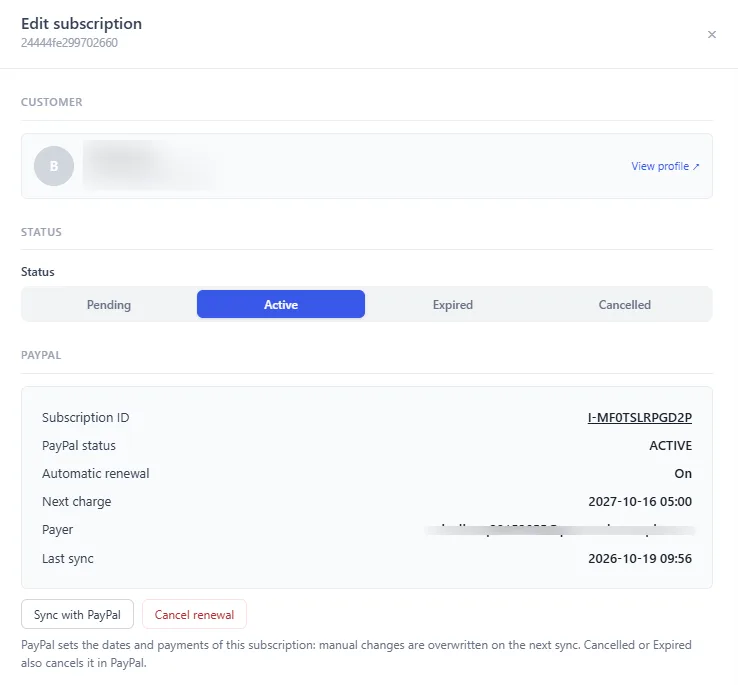
Click a subscription to open its panel:
- Customer: the user, with a link to their profile.
- Plan snapshot: the plan, price, currency and duration it was sold with.
- Subscription dates: Starts at, Expires at and, if cancelled, Cancelled at. A bar shows the coverage at a glance.
- Quick actions: add one full plan duration, or add or subtract 7, 30 or 90 days to Expires at. They only change the form: nothing is saved until you click Save changes.
- Payments history: every payment of the subscription, with Add payment to register a new one right there.
- Accounting: gross and net income, from its completed payments.
- Note: a private note for your team.
PayPal subscriptions
A subscription paid with PayPal shows a PayPal block with:
- its PayPal ID, linked to your PayPal panel;
- the PayPal status, the Next charge and whether Automatic renewal is on;
- the Payer and the Last sync.
It also has two buttons:
- Sync with PayPal reads the subscription from PayPal right away.
- Cancel renewal stops the charges, as if the member did it: they keep access until the end of the paid period.
PayPal sets the dates and payments of these subscriptions, so manual changes are overwritten on the next sync. Setting a PayPal subscription to Cancelled or Expired also cancels it in PayPal.
Dbmovies also syncs PayPal subscriptions every hour, so they stay right even if a notification from PayPal gets lost.
Manual subscriptions
To give access to a member who paid another way:
- Click Add subscription.
- Search for the user and choose the plan.
- Click Create & continue.
- Register the payment with Add payment. When the payment is completed, the subscription is activated for the duration of its plan.
To renew a manual subscription, register a new payment: its days are added to the current end date, so the member does not lose any.
A subscription with payments cannot be deleted: delete its payments first in Dbmovies › Payments.
Refunds and chargebacks
- A refund, made in PayPal or marked here, takes back the days of that payment. If it was the only payment, the subscription goes back to pending.
- A chargeback in PayPal cancels the subscription and ends the access.
See Payments.
Emails
Dbmovies emails the member when:
- their subscription becomes active;
- it is about to expire;
- they cancel the renewal;
- it ends;
- your site cancels it.
Edit the subject and message of each one in Dbmovies › Settings › Email › Subscriptions messages. To make sure they arrive, set up SMTP: see Initial settings.
Members in the Users list
Users shows the membership of each user: its status, plan, PayPal or manual, and when it renews or ends, plus the total they paid.