Dbmovies
Titles and content
Titles and content sets how the title, the address and the content of each imported movie, TV show and episode are written, with templates and markers. This page lists every marker and explains what happens to the titles you already have.
Overview
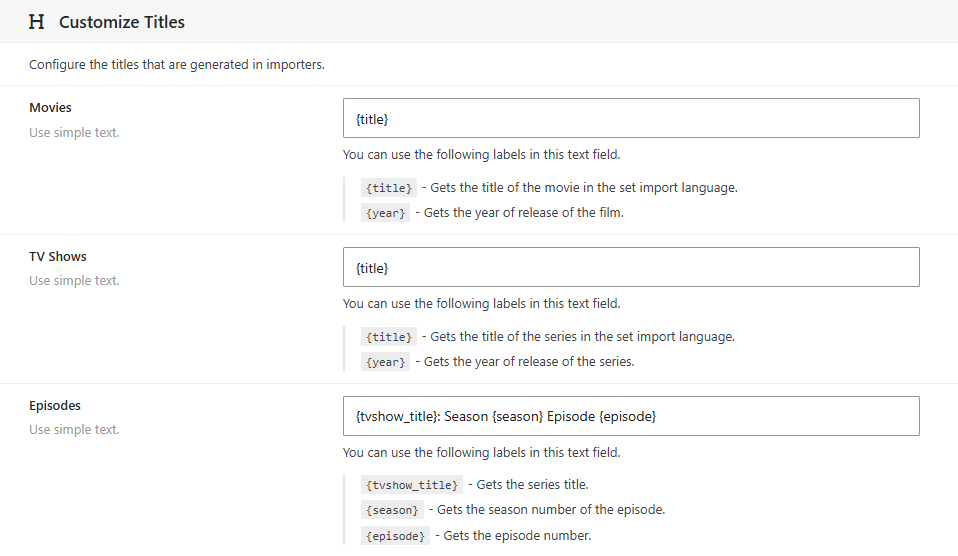
When you import a title, Dbmovies writes its title, its permalink (the last part of its address) and its content from templates. You set them in Dbmovies › Settings › Data Importer › Titles / Content, with markers in braces, such as {title}, that are replaced with the data of each title.
There is one template of each kind for Movies, TV Shows and Episodes.
Default templates
| Title | Permalink | Content | |
|---|---|---|---|
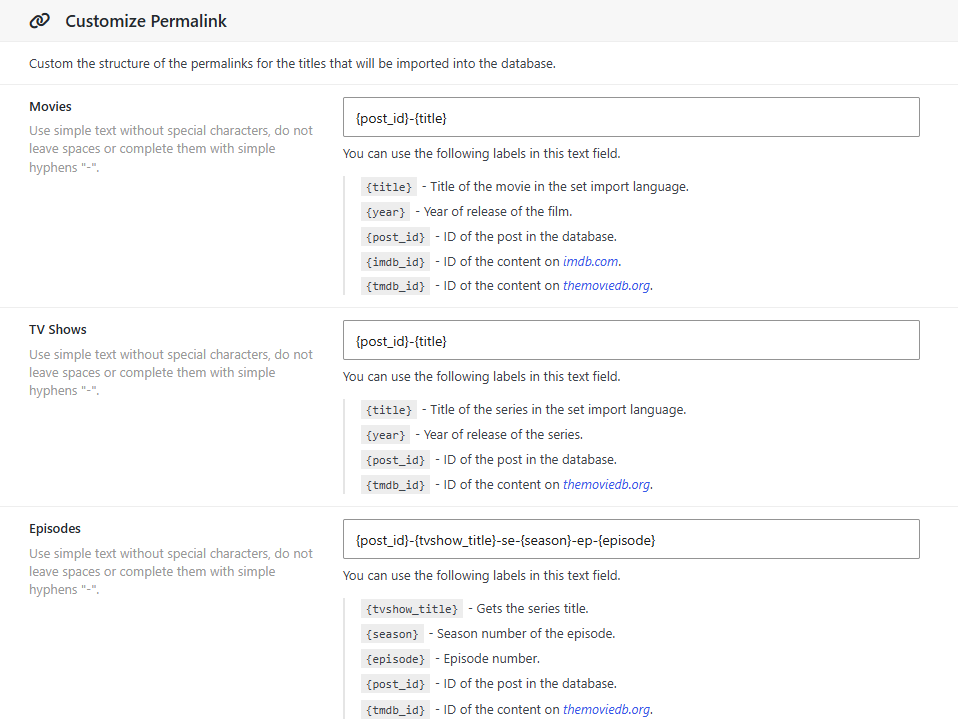
| Movies | {title} | {post_id}-{title} | {overview} |
| TV Shows | {title} | {post_id}-{title} | {overview} |
| Episodes | {tvshow_title}: {season}x{episode} | {post_id}-{tvshow_title}-se-{season}-ep-{episode} | {overview} |
For example, the movie Fight Club gets the title Fight Club and an address such as yoursite.com/movies/1234-fight-club. An episode gets a title such as Breaking Bad: 1x1.
Markers
Every marker of a type works in its three templates: title, permalink and content.
| Marker | Movies | TV Shows | Episodes | What it gives |
|---|---|---|---|---|
{title} | Yes | Yes | The title, in your import language | |
{original_title} | Yes | Yes | The original title | |
{year} | Yes | Yes | The release year | |
{overview} | Yes | Yes | Yes | The synopsis |
{post_id} | Yes | Yes | Yes | The ID of the title on your site |
{tmdb_id} | Yes | Yes | Yes | The ID on TMDb |
{imdb_id} | Yes | Yes | The ID on IMDb, such as tt0137523 | |
{tvshow_title} | Yes | The title of the TV show | ||
{season} | Yes | The season number | ||
{episode} | Yes | The episode number | ||
{episode_name} | Yes | The name of the episode |
Title
The title template is plain text: HTML is removed. A common change is adding the year, as {title} ({year}).
If TMDb has no release date for a title, {year} is empty and a template like {title} ({year}) gives a title ending in (). Upcoming titles are the usual case.
Permalink
The permalink template builds the last part of the address. Use letters, numbers and hyphens: spaces become hyphens, and WordPress removes accents and special characters from the result.
- Keep
{post_id}in it. It makes every address unique: two movies called Halloween get different addresses instead ofhalloweenandhalloween-2. - Decide it before you import. Changing an address later breaks the links that point to the old one, including the ones search engines already know.
The first part of the address, such as movies in /movies/1234-fight-club, is set in Settings › Permalinks. See Initial settings.
Content
The content template is what appears in the editor of each title, usually the synopsis. You can add text and simple HTML, such as <strong> or links.
Each line of the template becomes a paragraph of the block editor. Write one paragraph per line, and keep the formatting inside the lines: headings and lists would end up inside a paragraph.
{overview}
<strong>Original title:</strong> {original_title}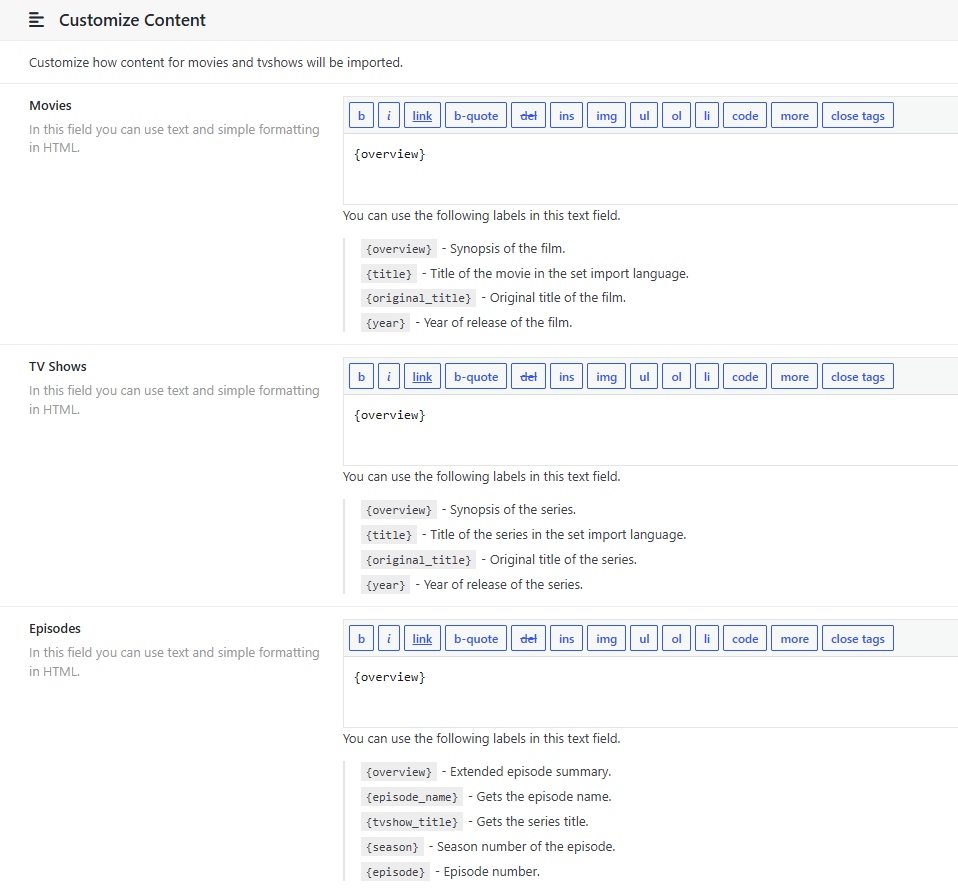
Titles you already have
The templates are applied when you import a title. When a title is updated, they are applied again if Structural Capabilities allows it, in Dbmovies › Settings › Data Importer › Meta Updater:
- Update Custom Titles rewrites the title.
- Update Custom Permalinks rewrites the permalink.
- Update Custom Content rewrites the content.
All three are checked by default, so a new template reaches your whole catalog as titles are updated.
With these options checked, every update overwrites the title, permalink and content. Changes you make by hand are lost, and a new permalink changes the address of the title. On a published site, we recommend unchecking Update Custom Permalinks, and also the others if you edit titles or synopses by hand. See Metaupdater.