Dbmovies
Payments
Payments records every charge of your site: memberships paid with PayPal or by hand, and ad campaigns. This page explains the Payments screen, payment statuses and methods, how payments activate and extend subscriptions, refunds, and currency and taxes.
Overview
Dbmovies › Payments lists every payment recorded on your site. Each payment belongs to a user and pays for something:
- a subscription: the membership of a user;
- an ad: a campaign in your ad slots.
Payments arrive in two ways:
- Automatically, from PayPal, when a member subscribes and on every renewal. See Subscriptions.
- By hand, when you receive money another way, such as a bank transfer, and register it here.
The status of a payment drives its subscription: a completed payment activates or extends it, and a refund takes those days back.
The Payments screen
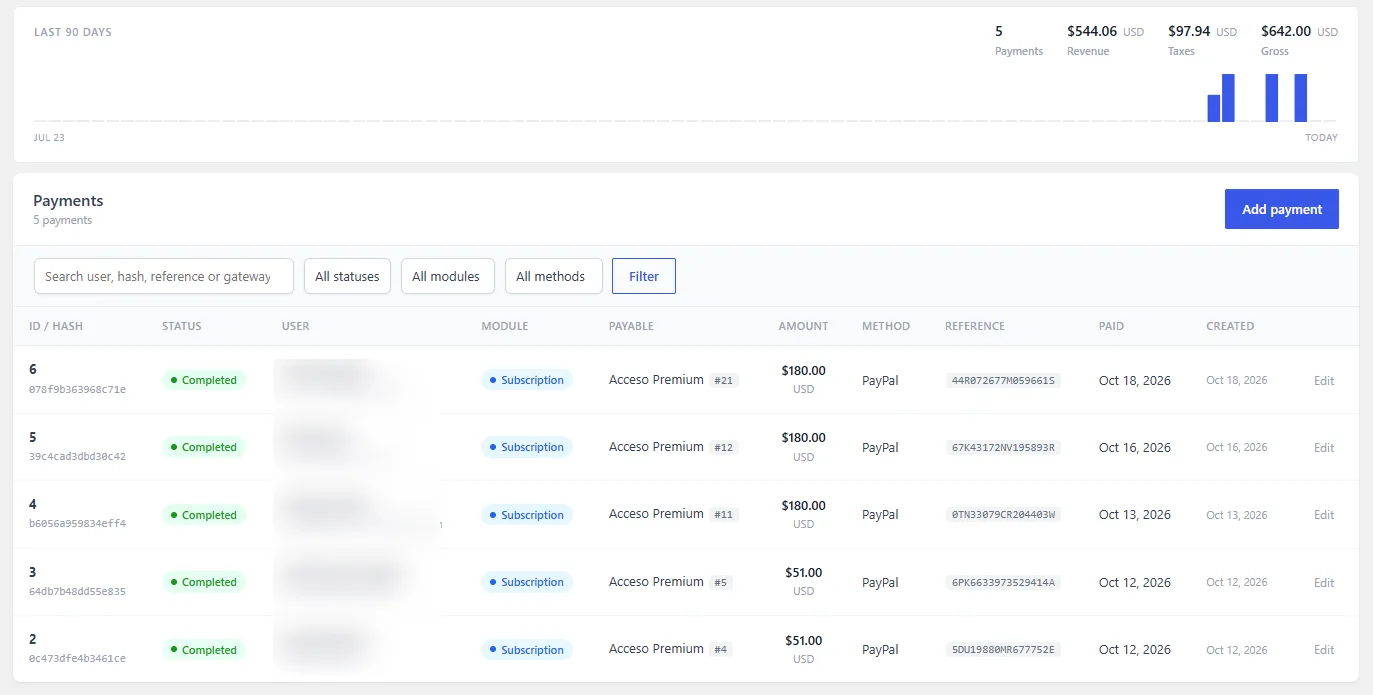
At the top, a chart shows the daily revenue of the last 90 days, with the number of payments, the revenue and the gross total of the period.
Below, the list shows every payment:
| Column | What it shows |
|---|---|
| ID / Hash | The number and unique hash of the payment |
| Status | Pending, Completed, Failed or Refunded |
| User | Who paid |
| Module | What it pays for: Subscription or Ad |
| Payable | The subscription or ad it pays |
| Amount | The total, in your currency |
| Method | Manual, PayPal, Stripe, Crypto or Bank transfer |
| Reference | Your reference, such as a bank receipt number |
| Paid | When it was paid |
| Created | When it was recorded |
Search by user, hash, reference or PayPal transaction, and filter by status, module and method. The Payments badge in the admin toolbar counts the pending ones.
Payment statuses
- Pending: recorded but not confirmed yet. It does not change the subscription and does not count as revenue.
- Completed: confirmed. It activates or extends its subscription and counts as revenue.
- Failed: the charge did not go through. It has no effect.
- Refunded: the money was returned. It takes back the days it had added to the subscription.
Keep statuses accurate: a payment left as Pending is not counted in your revenue.
Payment methods
The method records how the member paid: Manual, PayPal, Stripe, Crypto or Bank transfer. It is informational: it does not change how the payment works, but it helps you match your payments with your real accounts.
Automatic charges work with PayPal. Payments that arrive any other way are registered by hand with their method.
Registering a payment
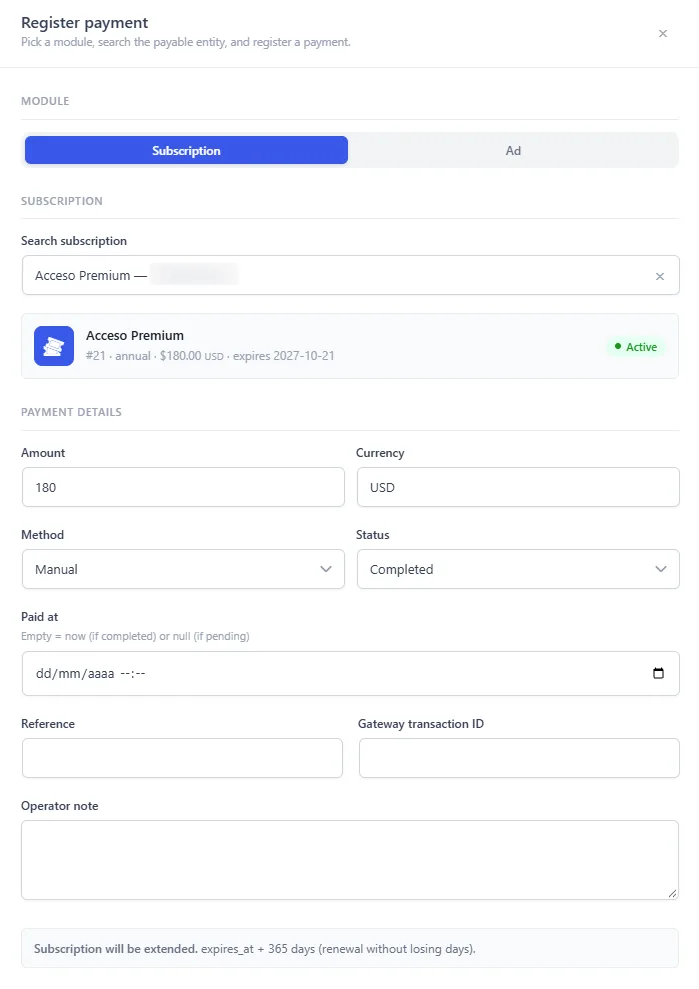
- Click Add payment.
- Choose the Module: Subscription or Ad.
- Search for what is being paid: a subscription by user name, email or plan, or an ad by title or hash.
- Fill in the amount, the method, the status and, if you want, a reference (for example, the receipt number of a bank transfer).
- Save.
Before you save, the panel tells you what will happen to the subscription:
- Subscription will be activated: it starts now and lasts the days of its plan.
- Subscription will be extended: the days of the plan are added to its current end date, so the member does not lose days.
- No subscription change: the payment is saved as pending.
You can also register a payment from the editor of a subscription, where it is linked to that subscription directly.
A payment for an ad is assigned to that ad permanently. If the ad has no advertiser yet, the panel lets you set one.
Editing a payment
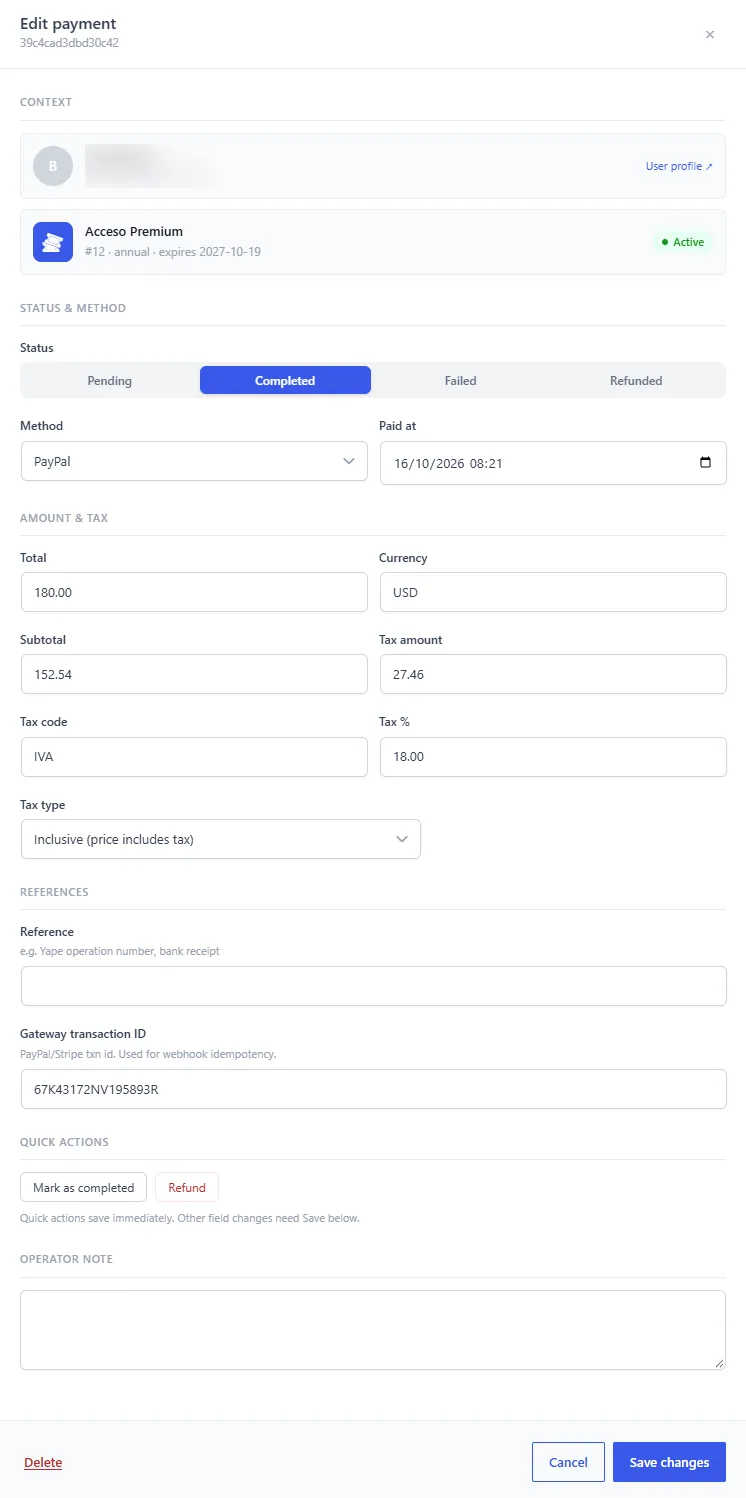
Click a payment to open its panel. There you see who paid and what for, with a link to the user profile, and you can change:
- Status & method
- Amount & tax: the subtotal, the tax type and percentage, the tax amount and the total
- References: your reference and the Gateway transaction ID of PayPal or Stripe
- Paid at: the date of the payment. If you leave it empty, a completed payment takes the current date.
- Operator note: a private note for your team
Quick actions save right away:
- Mark as completed: confirms a pending payment and credits its subscription.
- Refund: marks the payment as refunded and takes back the days it had added.
Other changes need Save changes.
Refunds and deleting payments
Refunding or deleting a completed payment reverts its effect on the subscription:
- if it was the only payment, the subscription goes back to pending;
- otherwise, the days it added are subtracted from the end date, and the subscription expires if no time is left.
Before you delete a payment, the panel shows the exact effect on the subscription and asks you to confirm. Deleting cannot be undone. To keep a record of a returned charge, mark it as Refunded instead of deleting it.
PayPal payments
When a member pays with PayPal, Dbmovies records the payment on its own, with the PayPal transaction ID, on the first charge and on every renewal. PayPal also tells your site about failed charges, refunds and cancellations, and the payment and its subscription follow them.
The transaction ID keeps each PayPal charge from being recorded twice. To set up PayPal, see Subscriptions.
Currency and taxes
Set your currency and taxes in Dbmovies › Settings › Subscriptions:
- Currency options: currency name, decimals, symbol and its position.
- Taxes:
- Tax percentage;
- Tax code;
- Tax type: Inclusive, when the price includes the tax, or Exclusive, when the tax is added on top.
Each payment keeps its own amount and tax, so changing these settings does not change the payments you already have. Revenue and taxes are calculated from completed payments.